See what the work costs
Review operating usage for deployed agents and authoring usage for drafts. Set caps before running larger workloads.
Find the usage that matches your task#
- Operating
- Model usage from deployed agents. Inspect the agent’s Usage tab or the console’s Usage and Dashboard views.
- Authoring
- Assistant proposals and Talk to the draft turns. These have separate caps and records in Usage.
- Not reporting
- No usage report is available for that application. It does not mean the application has spent nothing.
For a shared cloud deployment, start by confirming the environment and tenant, then compare applications within the same displayed period. Record the application owner alongside the cost when reviewing spend with your team. The screenshots below demonstrate tenant and application reporting; they do not demonstrate a team-membership filter or a cross-tenant combined report. In a local sandbox, these totals describe that sandbox’s activity.
Archived or retired applications can still have recorded spend that counts toward the current period’s tenant budget. Removing an application from a live list does not reset its ledger.
Read the usage screens#
For a complete first-session example, follow the practice application from deployment to its own Usage tab.
These real screenshots use the local Copperleaf demo on 12 October 2026. Values are snapshots, not prices or expected spend. Click an image to view it at full size. Match the tenant, application, activity type, date range, and archived-data scope before comparing totals.
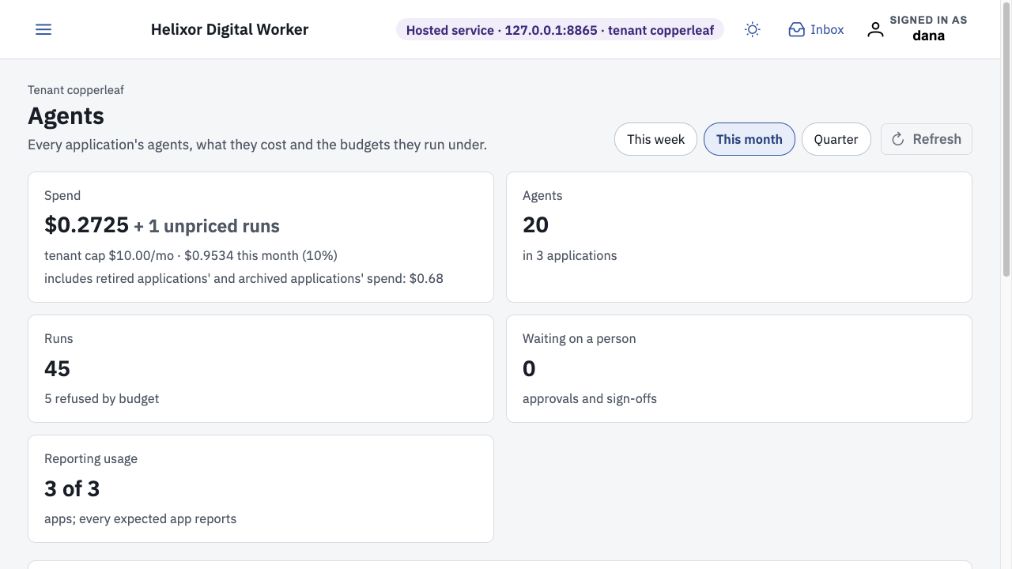
Open Dashboard and choose This week, This month, or Quarter. Check reporting coverage and unpriced runs as well as spend. The tenant budget meter includes retained historical spend; it can differ from the live-application total.
Open full-size screenshot ↗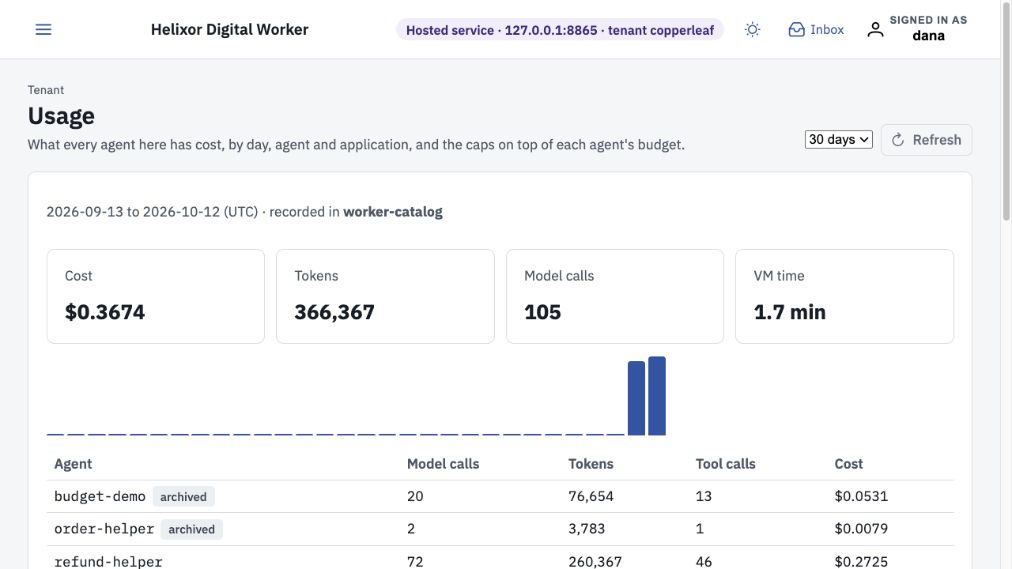
Open Usage from navigation. Choose 7, 30, or 90 days and read the displayed UTC date range. These rolling windows differ from Dashboard’s calendar periods. Use Refresh to retrieve current records.
Open full-size screenshot ↗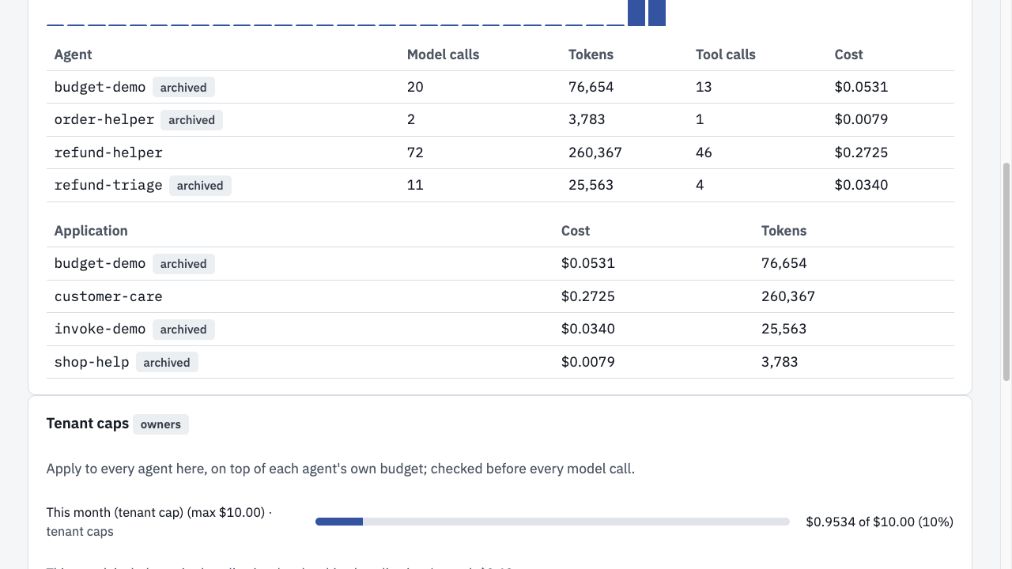
The first table breaks down agents; the second groups cost and tokens by application. Archived rows retain their recorded usage. These tables describe the selected window; they do not reset when an application is archived.
Open full-size screenshot ↗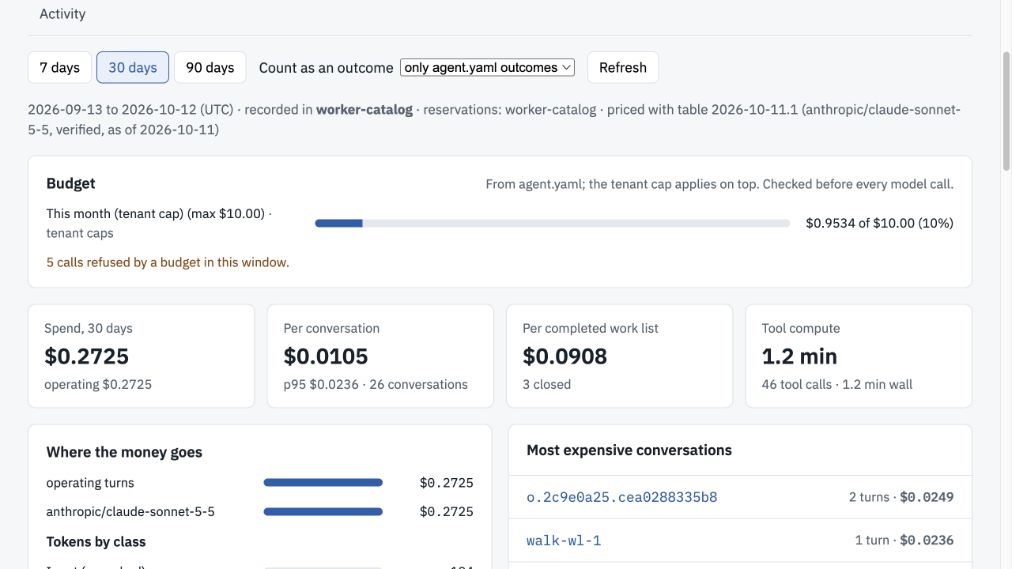
Open Applications → customer-care → refund-helper → Usage. Select the window, then inspect spend, per-conversation cost, completed work-list cost and tool compute. Outcome costs depend on what is counted; inspect the outcome selector and definitions before comparing agents.
Open full-size screenshot ↗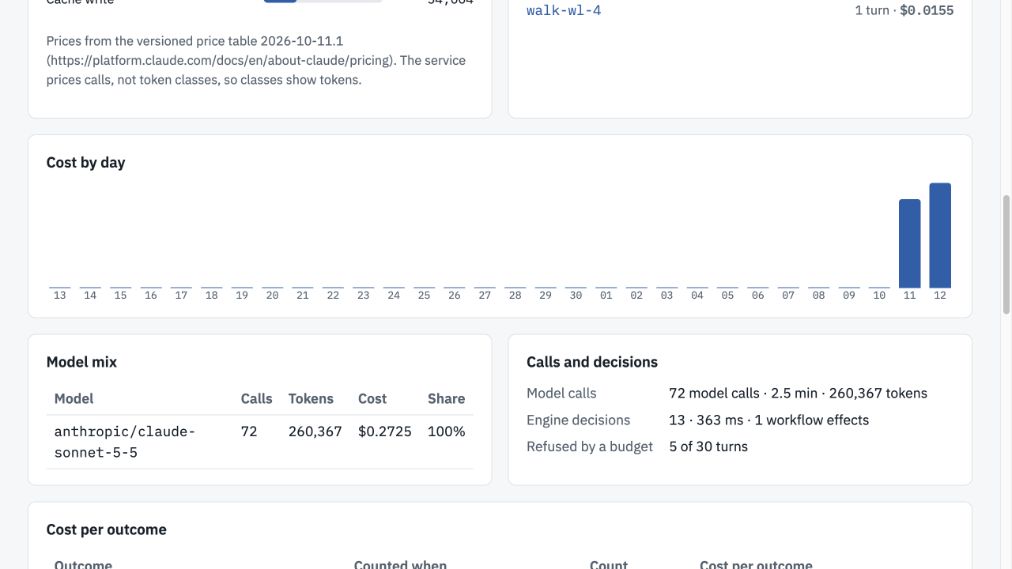
Scroll to Cost by day to locate changes, then read Model mix and Calls and decisions. The most-expensive-conversation links above this view lead to the recorded turns. A refusal count is separate from successful model calls.
Open full-size screenshot ↗Set limits before a run#
An agent can declare per-turn, per-conversation, daily, and monthly limits, plus max_output_tokens. Tenant limits also apply. Where limits overlap, the tighter remaining allowance governs the call.
The runtime checks estimated call cost before contacting the model. A call can be refused while recorded spend is still zero if the estimate would exceed the available allowance. Review the output-token limit as well as the dollar cap.
Use Budget in Build for an agent draft and Usage for the applicable tenant and authoring caps. Save and deploy agent configuration changes before expecting them to affect live work.
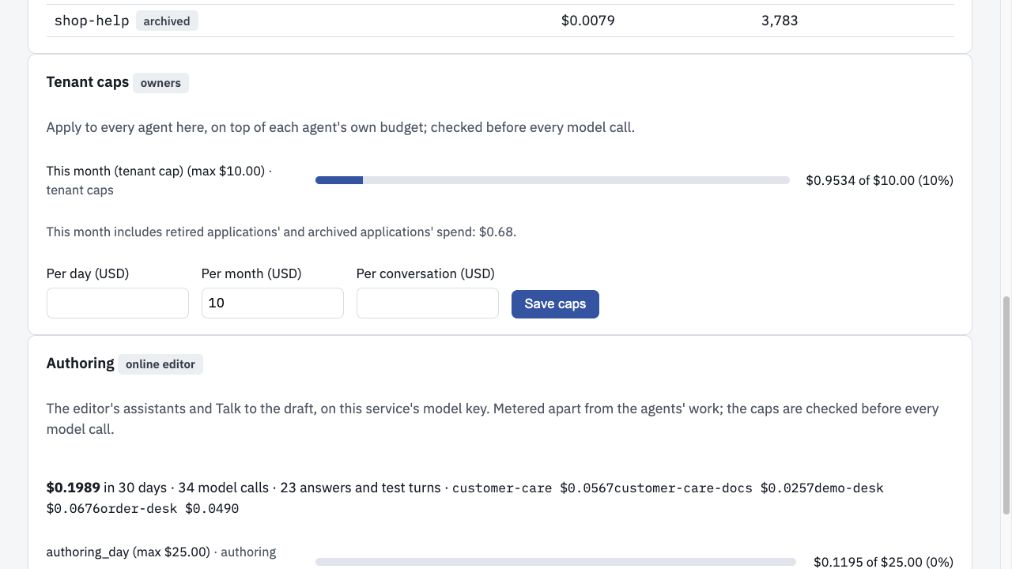
Under Usage → Tenant caps, owners can review the daily, monthly and per-conversation limits. They apply in addition to agent budgets. The meter explicitly includes archived and retired application spend. This capture is read-only; no cap was changed.
Open full-size screenshot ↗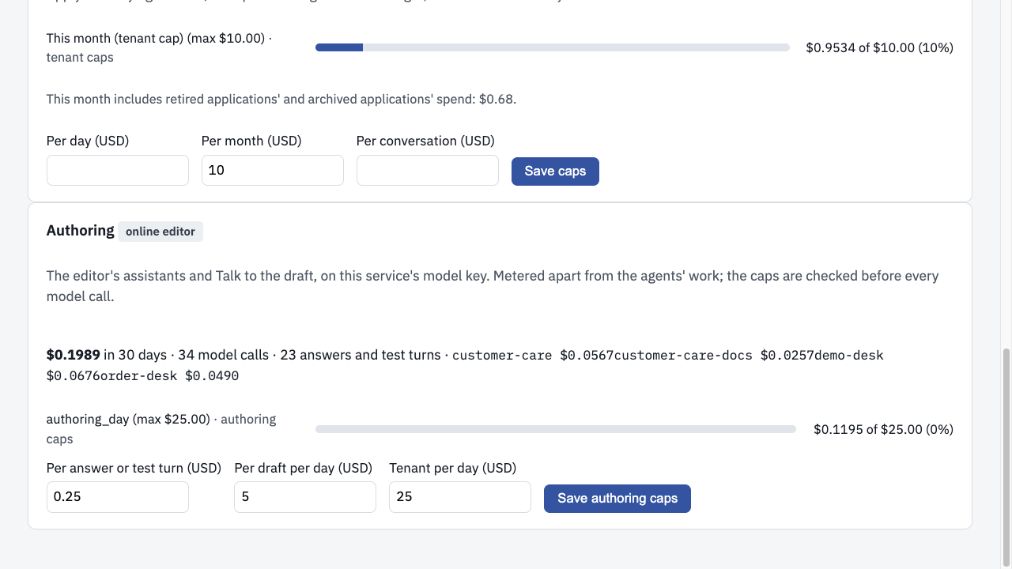
The Authoring section meters assistant proposals and draft test turns separately. Review the per-answer/test-turn, per-draft-per-day, and tenant-per-day caps. These screenshot values belong to the demo tenant and are not recommended defaults.
Open full-size screenshot ↗Understand a refusal#
| Code | Next step |
|---|---|
AGENT_BUDGET_EXCEEDED | Identify the scope and period that refused the call. Reduce the request or ask the responsible owner to review the cap. |
AGENT_BUDGET_PRICE_UNKNOWN | The system cannot price the selected model. Ask the administrator to configure supported pricing; an unknown value is not zero cost. |
USAGE_LEDGER_UNAVAILABLE | Restore the usage service before retrying. Budget enforcement cannot proceed without the ledger. |
Usage describes recorded activity and cost. It does not by itself establish the quality or business value of an answer.