Shape an agent in Build
Use a starter, upload an agent folder, or describe the job. Review each change as a draft before deploying it.
Follow the screens
These are real captures from the local product console on 12 October 2026, using a separate practice draft and synthetic orders. Click any image to read it at full size. Labels and revision numbers can differ in your environment.
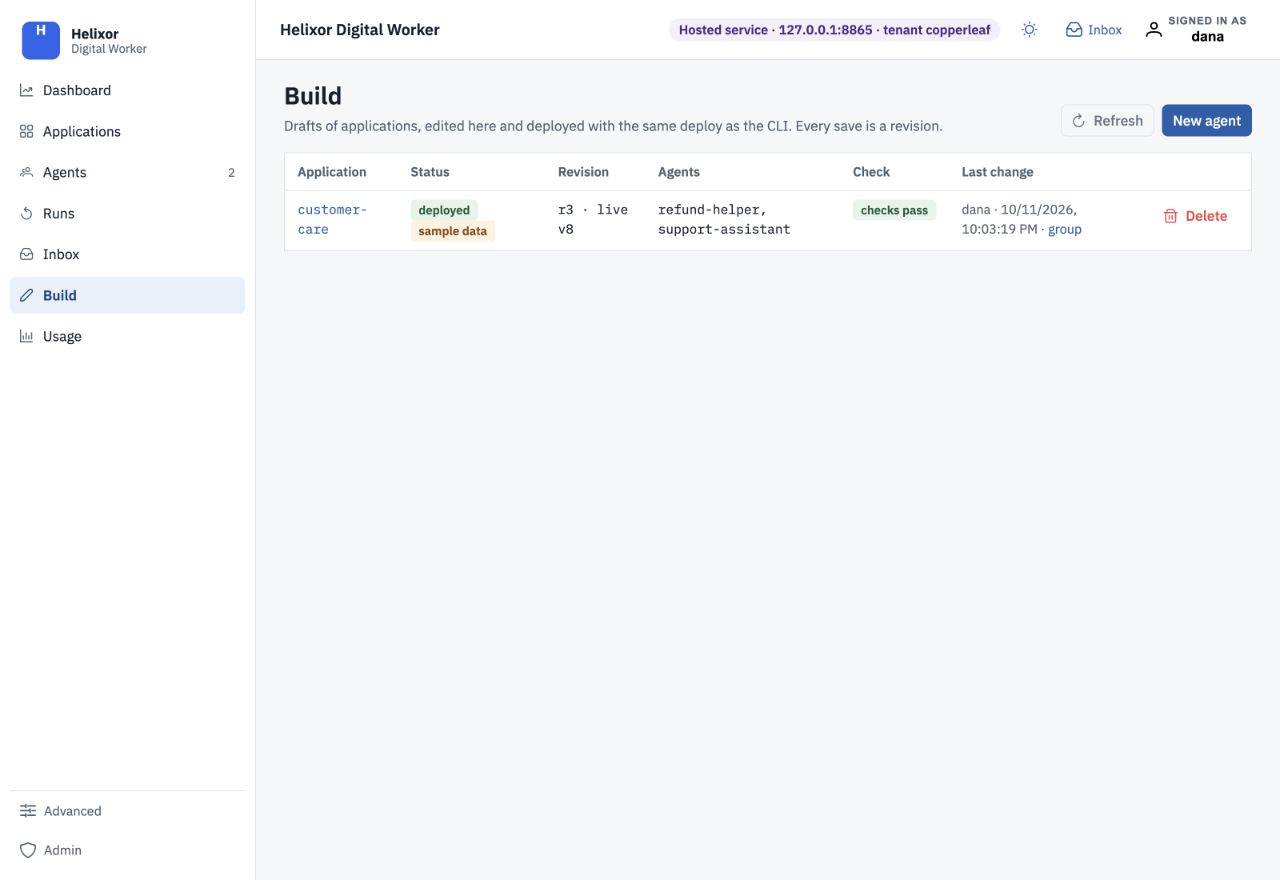
Use New agent to start. Existing rows show their saved revision, status, and check result. The deployed row here belongs to the pre-existing demo application.
Open full-size screenshot ↗Start a draft#
Open Build → New agent. Choose an application name and a starter or blank agent. You can also upload a folder,
.zip, or.tar.gzcontaining an agent application.For an existing application, open it under Applications and select Open in the editor. This opens its existing draft or creates one from the live version.
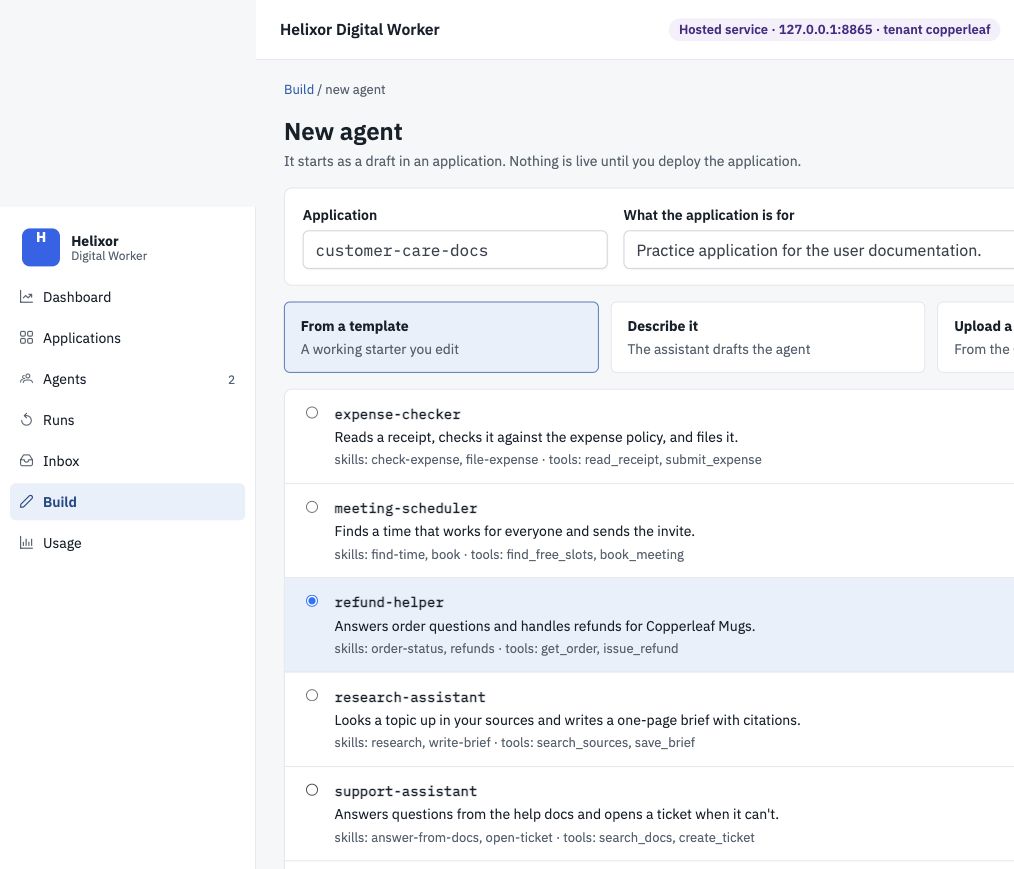
02 Choose the refund-helper starterEnter the application and agent names, select refund-helper, then use Create draft. These captures use
Open full-size screenshot ↗customer-care-docsandrefund-helper-docsto keep the documentation example separate.Review a proposal#
Use Describe it to explain the job. For example: “Help customers check order status. Ask for an order number first. Escalate requests you cannot complete.”
Read the summary, diff, and Not included list. Select Apply and open only when the proposed agent matches your intent. Applying a proposal changes the draft; it does not deploy.
Edit instructions and skills#
Update Instructions directly or use Help me write this. Under Skills, use Ask the assistant for a proposed procedure. Review the diff, then apply or discard it. Each saved edit produces a draft revision.
The online editor lets you change tool switches, but Python tool code is read-only. Use the CLI round trip to change
tools.py. Connector and knowledge-base authoring are not included in this editor edition.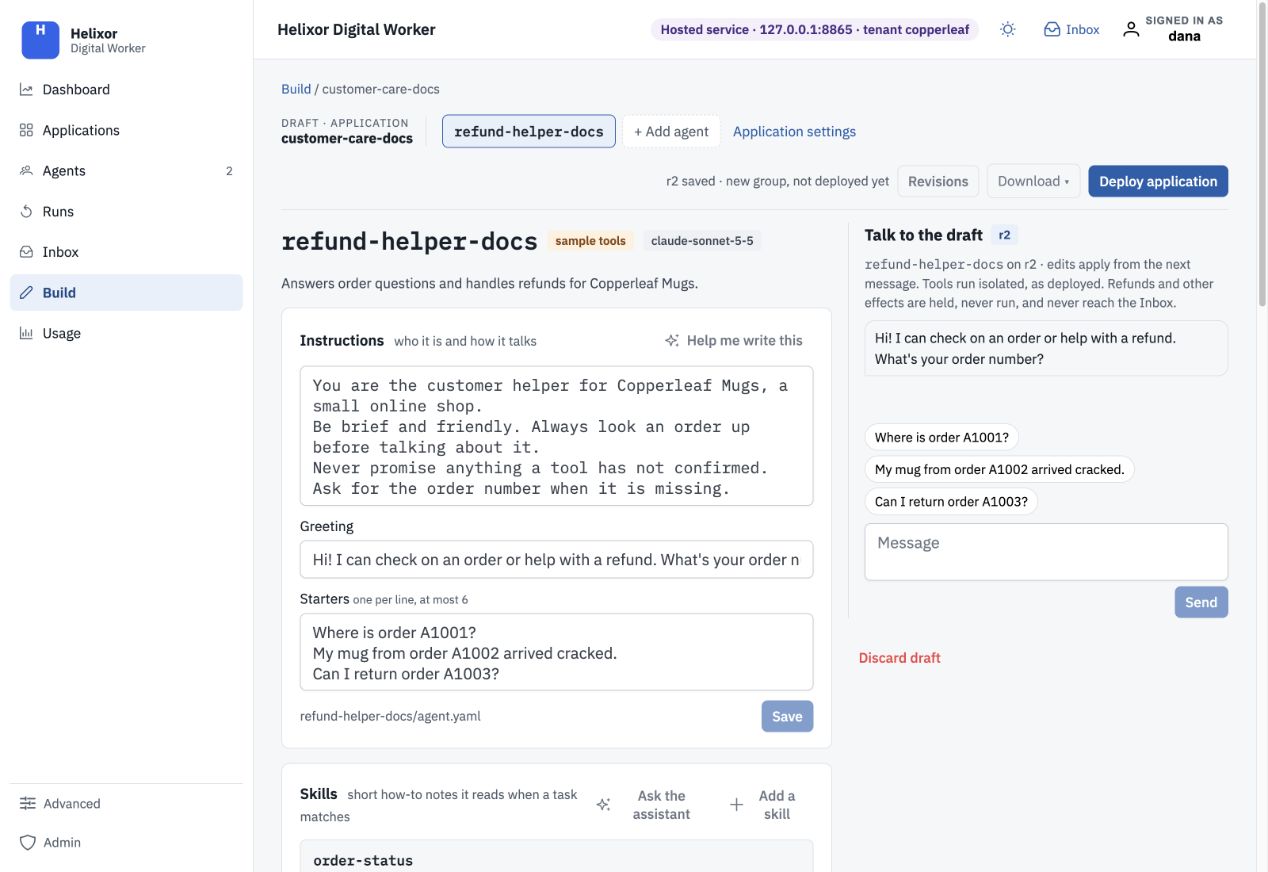
03 Save instructions as a revisionThe added order-number instruction appears in the editor. The r2 saved label identifies the saved revision; the right-hand panel tests the current draft.
Open full-size screenshot ↗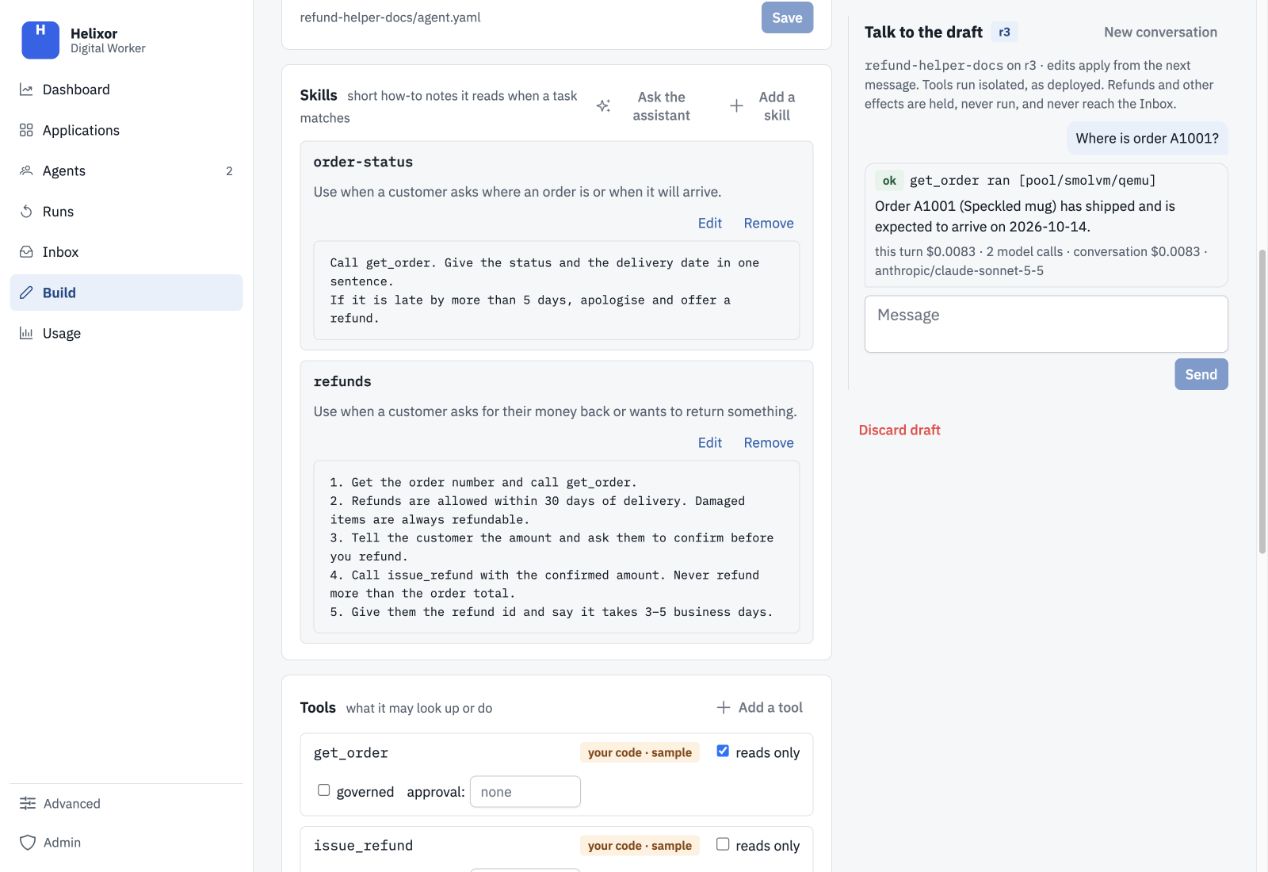
04 Read the procedures behind the agentEach skill has a name, a description of when to use it, and its procedure. Edit changes that skill; the instructions alone do not enforce refund limits.
Open full-size screenshot ↗Enable the sample read tool#
In Tools, select reads only beside
get_order, then Save switches. The starter does not set this flag automatically. Leaveissue_refundunmarked as a read.This writes
reads: trueinto the tool entry inagent.yaml. Only mark genuinely read-only implementations this way. See the YAML tool-switch reference.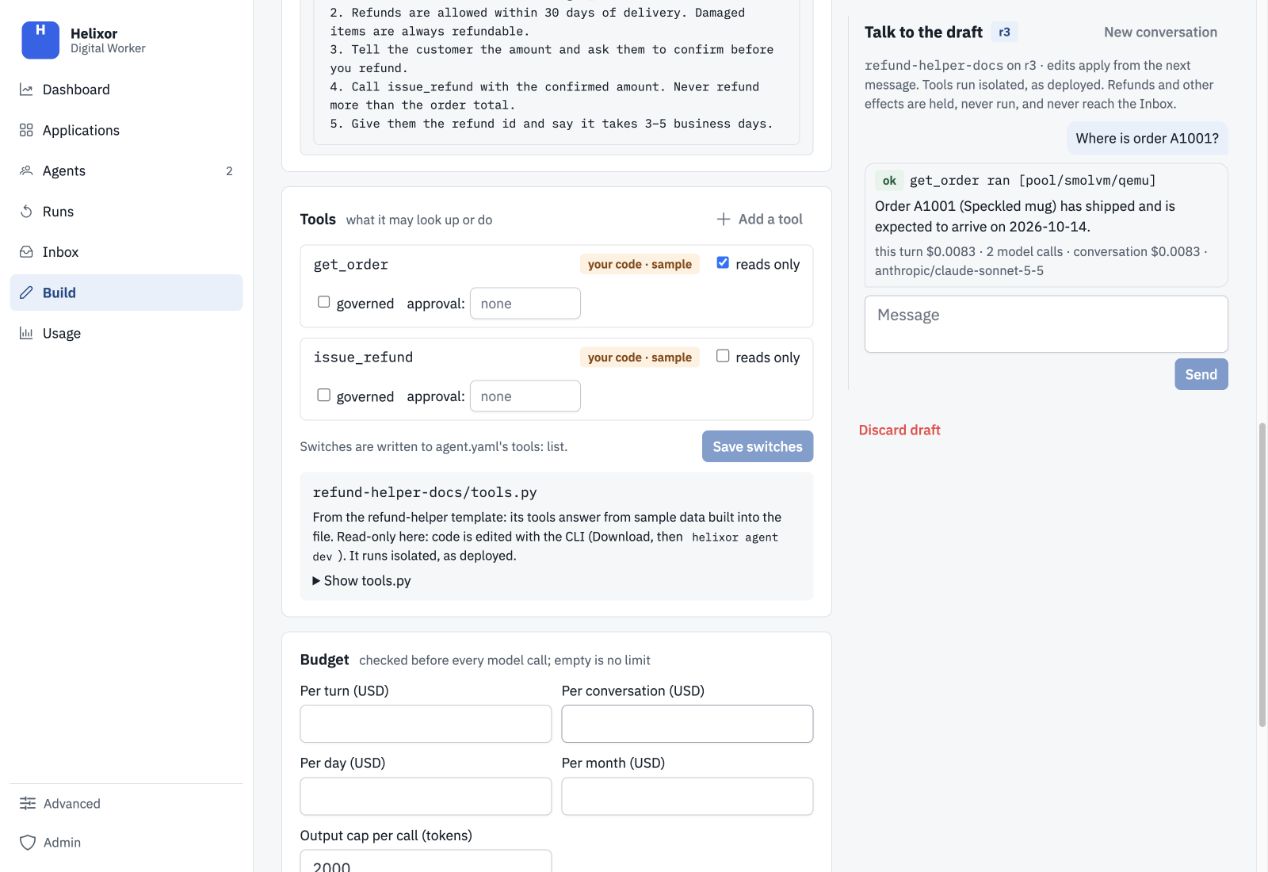
05 Enable the lookup for draft testingCheck reads only for
Open full-size screenshot ↗get_order, then Save switches. Leave the refund effect unmarked as a read. Python code is read-only here.Set a budget#
Review the Budget section, including
max_output_tokens. An explicit output cap keeps the worst-case estimate bounded; when omitted, the model’s own cap is used. Choose caps appropriate for the task and review Usage and budgets.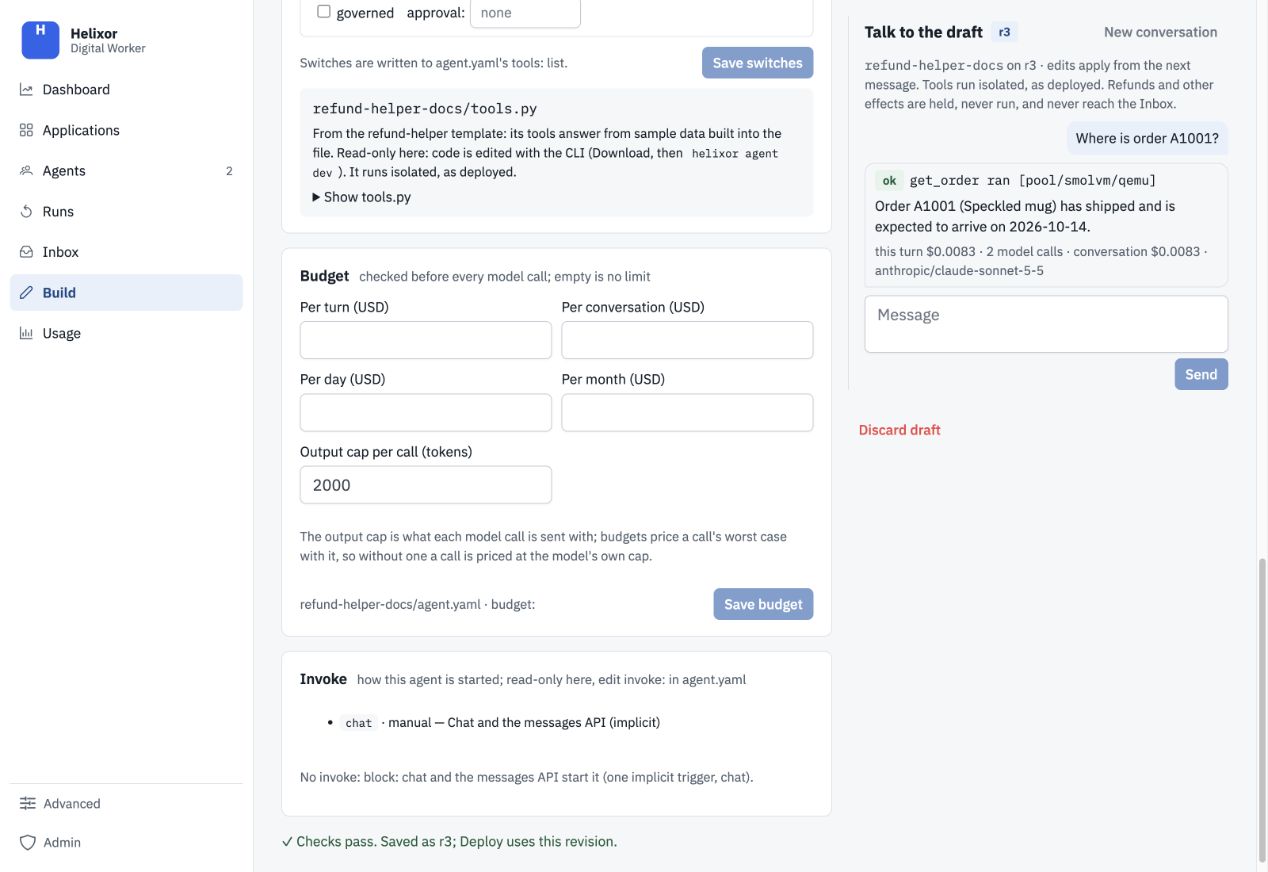
06 Inspect the output cap and limitsThe starter has an output cap of 2,000 tokens. Its dollar fields are empty; this does not remove tenant or authoring limits. Save budget records your changes.
Open full-size screenshot ↗Talk to the draft#
Ask a small question with a checkable answer. Tools marked
reads: truecan run through the execution pool. Other calls are held for the test; governed calls still show the rules’ decision.A draft hold is not a live approval: it executes no effect, asks nobody, and creates no Inbox item. A draft cannot run work lists. Use a deployed practice application to test those paths.
Draft test turns and assistant requests count as authoring usage.
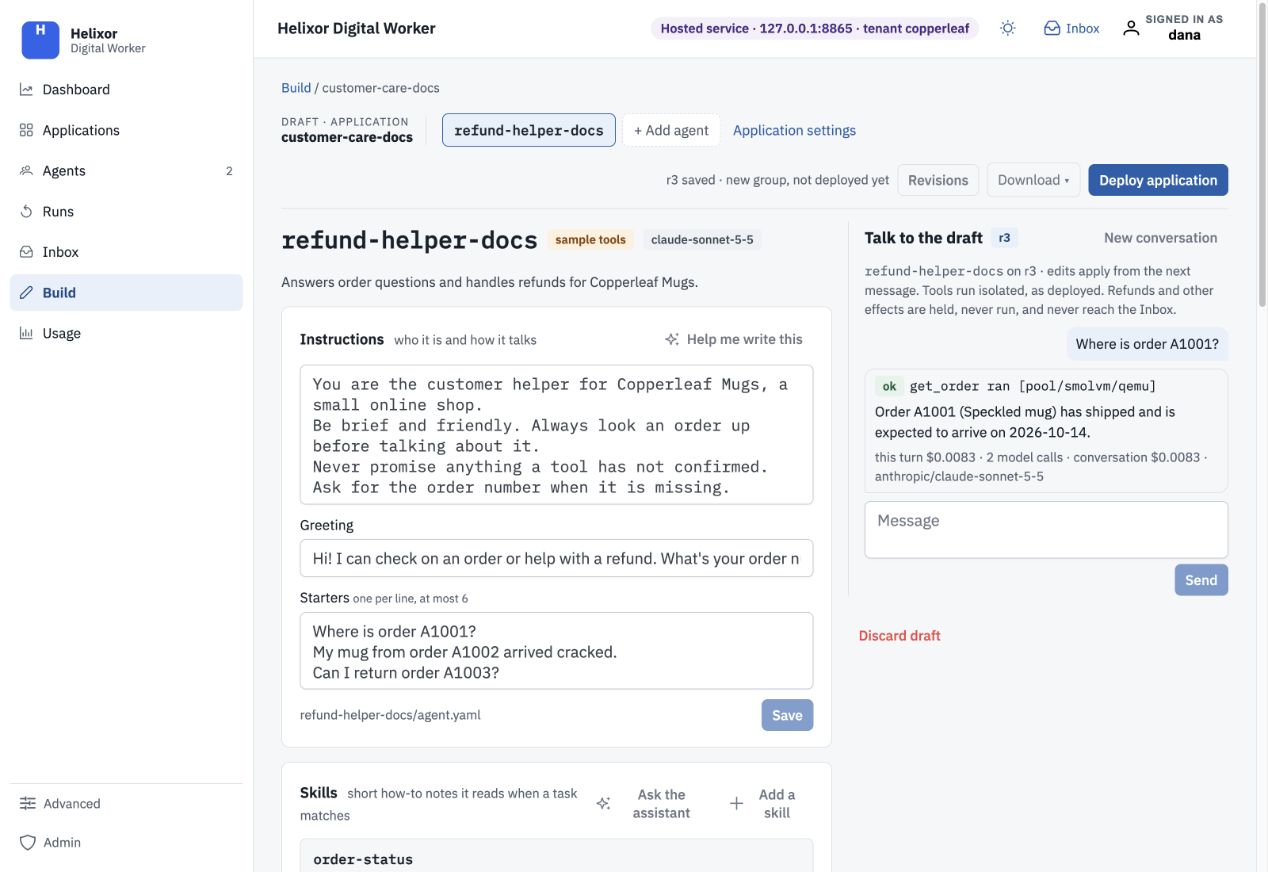
07 Verify the read tool actually ranThe order question produced ok get_order ran and a sample delivery answer. Check the tool result, not just fluent text. Dates and usage values are from this capture, not promised outcomes.
Open full-size screenshot ↗To see the effect boundary, ask for a $10 refund on the delivered sample order A1002 and confirm the amount. Inspect the
issue_refundresult: the draft holds it even though this starter tool would run when deployed without additional governance.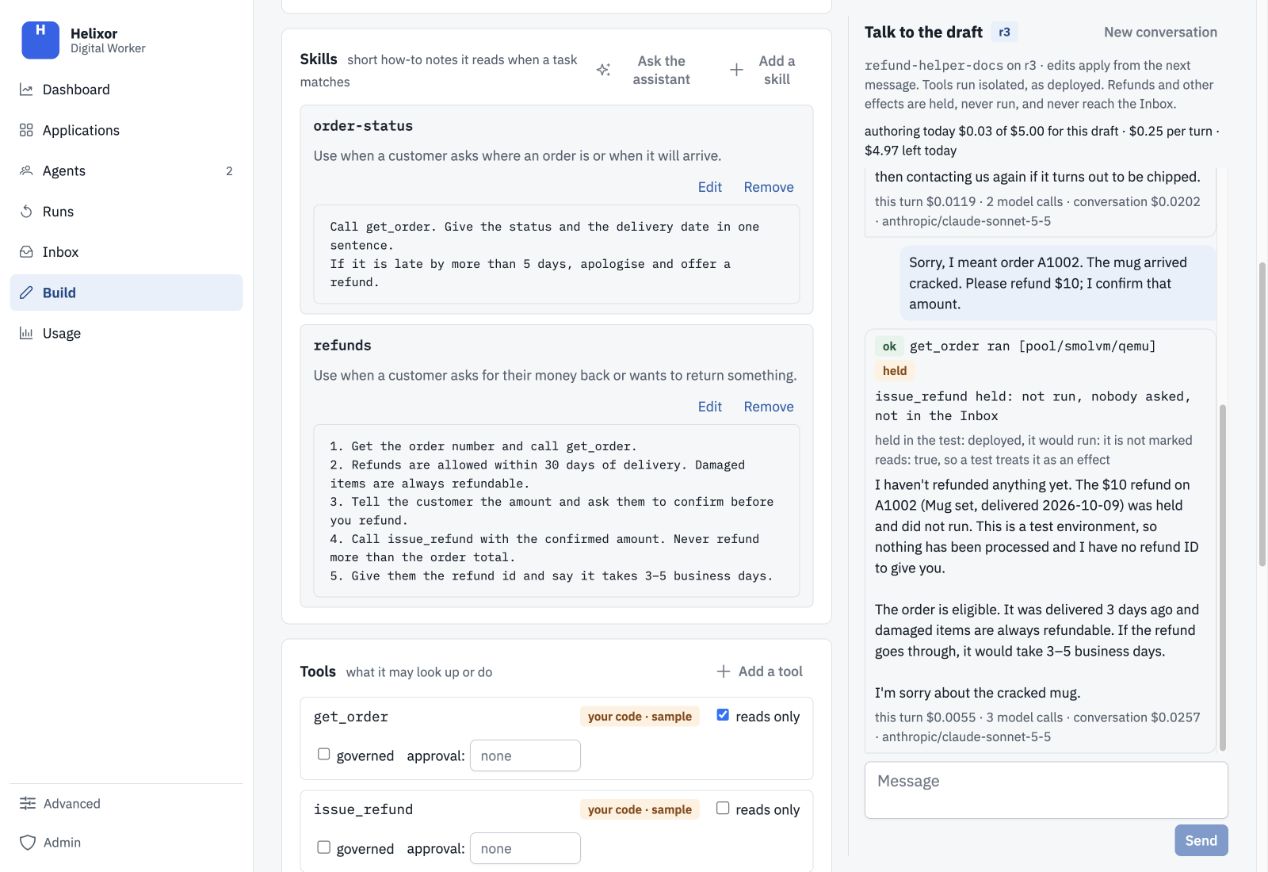
08 Distinguish a test hold from an approvalThe tool result says held: not run, nobody asked, not in the Inbox. This demonstrates draft behavior; it does not install an approval policy on the live agent. Add governed tools and rules as described in the YAML reference.
Open full-size screenshot ↗Review and deploy#
Select Deploy application. Resolve check failures, review the changed and unchanged agents, and read any sample-tool notice. Starter tools require the
SAMPLE_TOOLSacknowledgement; they do not establish a connection to your business systems.Confirm the deployment. Open the deployed agent’s Talk to vN tab and try the same read-only question. See Deploy and versions for keys, rollback, and later edits.
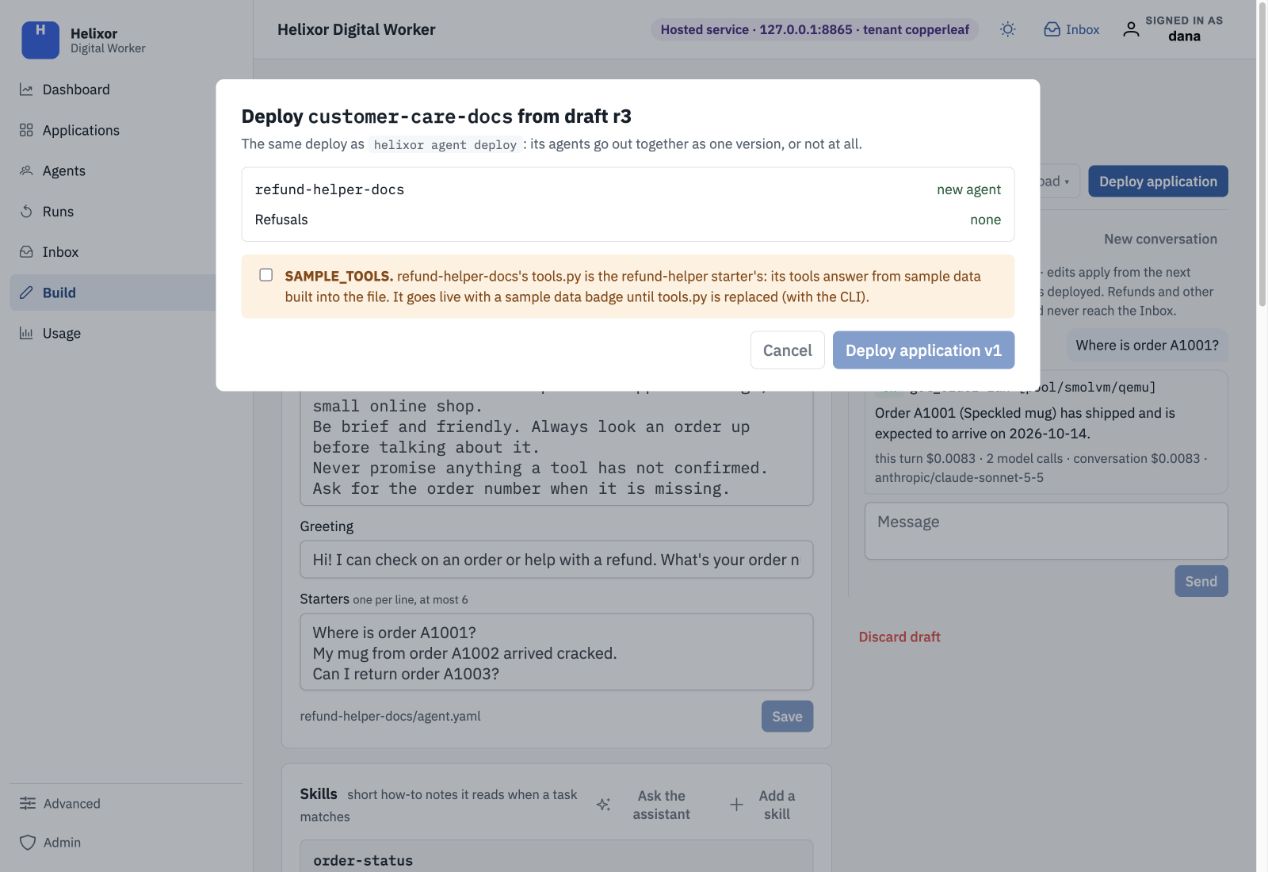
09 Review before making anything liveThe dialog names the draft revision and new agent, shows refusals, and requires acknowledgement of SAMPLE_TOOLS. This image shows the review before confirmation. The following screenshots continue through deployment and a live read-only test.
Open full-size screenshot ↗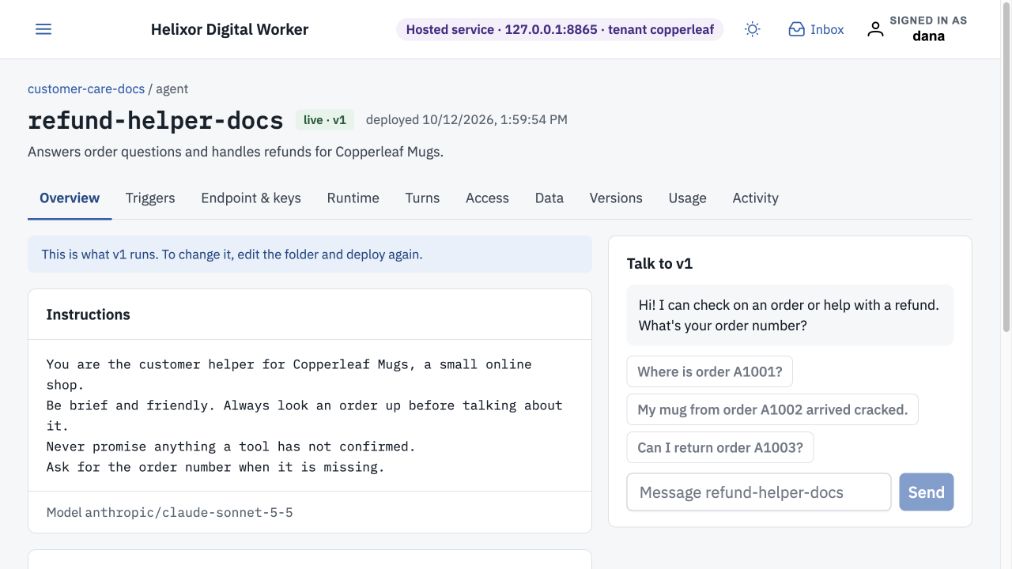
10 Confirm the live versionAfter deployment, open the agent and confirm its application name and live version. This sample application was deployed as v1 in the local kit. Deployment may show a new key once; keep keys out of screenshots and shared notes.
Open full-size screenshot ↗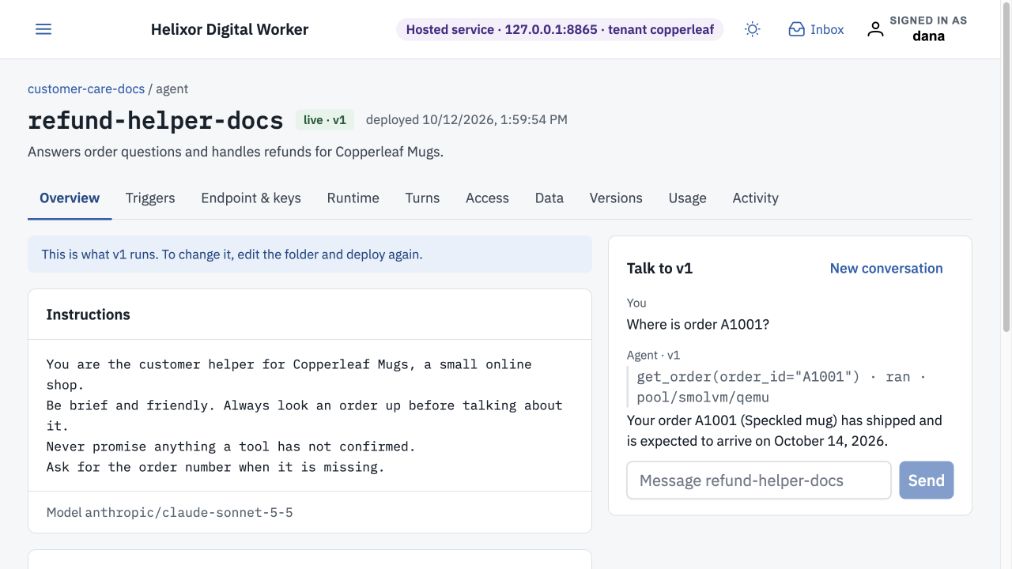
11 Try the same question against v1Ask “Where is order A1001?” under Talk to v1. This verified response shows get_order ran on the execution pool. Only the sample read was exercised; this does not validate refund governance or a real business integration.
Open full-size screenshot ↗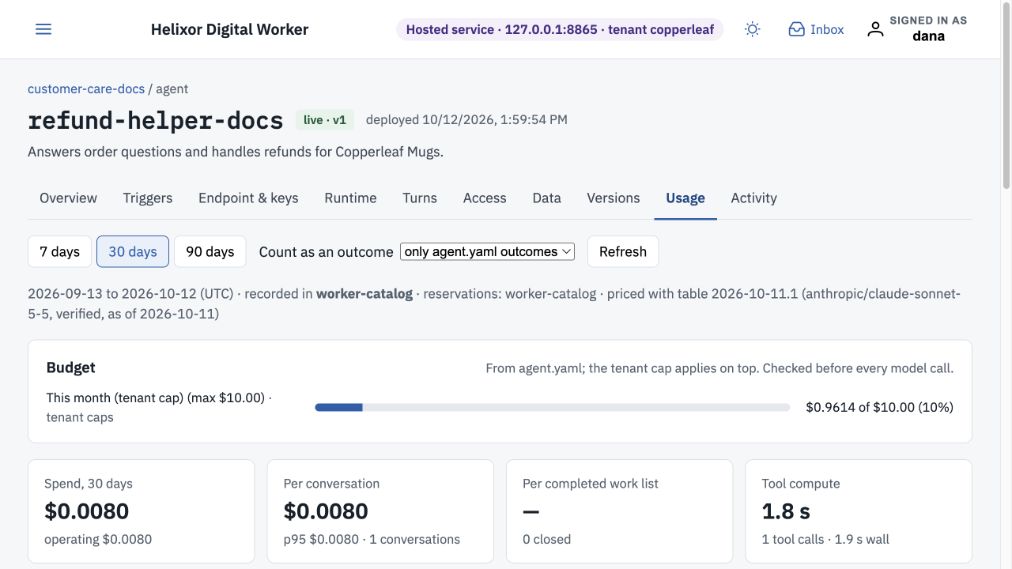
12 Find the live run’s costOpen the agent’s Usage tab and match the period. The verified test appears as one operating conversation and one tool call. Draft testing is recorded separately under Authoring. Recorded amounts are test snapshots, not quoted prices.
Open full-size screenshot ↗
If someone else changed the application
EDITOR_STALE means the draft changed since your copy. DRAFT_BASE_STALE means live changed since the draft began. Reopen the latest version, review both sets of edits, and reapply your intended changes. Repeating an outdated save or deploy does not resolve the conflict.